Selling many of the same item (stock quantities)
For sellers with several units of the same product. Set a stock quantity on your listing, record how many each buyer takes, and Waegook counts your stock down, keeps the listing available until it runs out, and tracks sold and confirmed numbers for you.
-
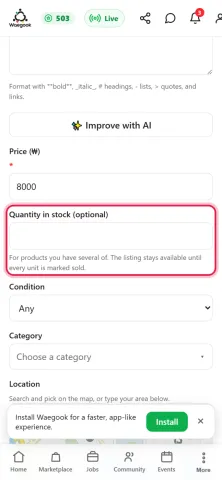
Step 1When you create a Selling post, scroll down to the field called 'Quantity in stock (optional)': it sits right under the price. This field is only for products. Leave it EMPTY for a normal one-off item (a used phone, a sofa). Fill it only when you have several units of the same product, like cases, bottles or packs.
-
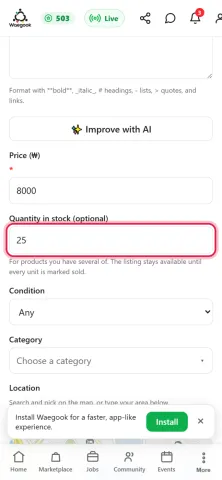
Step 2Type how many units you have: in this example, 25 phone cases. With a stock quantity set, your listing will stay available until every single unit is marked sold, so you never have to repost the same product again and again. Then publish your post as usual.
-
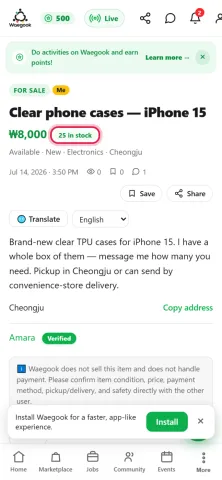
Step 3Your published listing now shows a stock badge right next to the price: here '25 in stock'. Buyers can see there is enough for everyone before they message you, which means fewer 'is it still available?' questions.
-
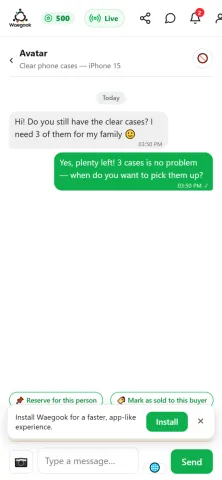
Step 4Buyers contact you through the normal chat, exactly like any other listing. Nothing changes for them: they simply tell you how many units they want. You can chat with many different buyers about the same listing at the same time.
-
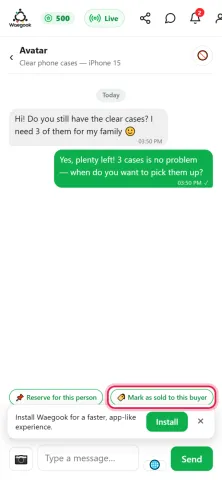
Step 5When you actually hand over the items to a buyer, open your chat with THAT buyer and tap 'Mark as sold to this buyer' in the actions row above the message box. Always do this from the chat of the person who bought: that is how Waegook knows which buyer took how many.
-
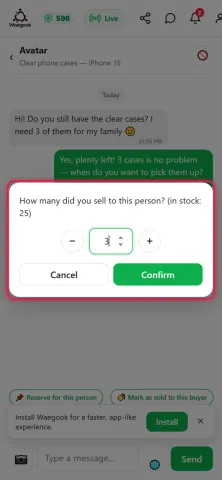
Step 6A quantity window opens showing how many you currently have in stock. Use the − and + buttons (or type a number) to enter exactly how many this buyer took: here 3 cases: then tap Confirm. Remember: this only records the sale on Waegook. Payment still happens directly between you and the buyer, outside the app.
-
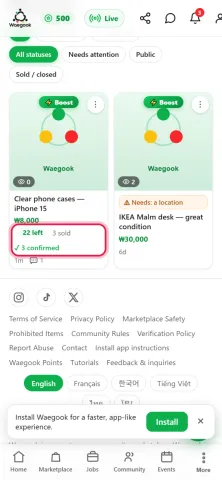
Step 7Your stock counts down automatically. In My Posts, the product now shows '22 left · 3 sold' and the listing stays available for other buyers. When your buyer confirms the purchase on their side you will also see '✓ 3 confirmed', and confirmed sales earn you seller points (once per distinct buyer, no matter how many units they took). When the very last unit is sold, the listing switches to Sold by itself.
-
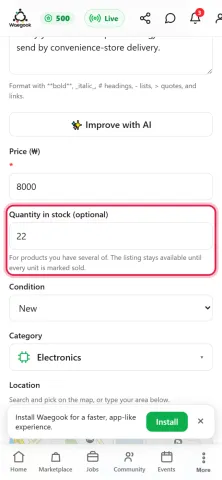
Step 8Got new supply, or counted wrong? Open your post's Edit page any time and change the 'Quantity in stock' number: the stock badge and your My Posts numbers update immediately. Set it to the amount you actually have