Host a paid event (bank transfer)
For organizers who charge for a ticket. Create the event, set the price and the bank account guests pay into, then keep track of who has paid. Takes about ten minutes. Guests pay you directly by bank transfer. Card payment is used for events Waegook runs and will open to organizers later.
-
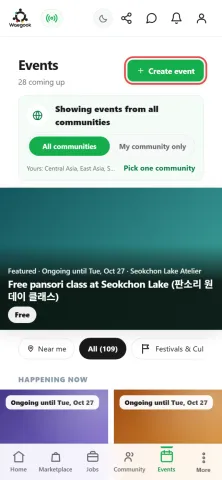
Step 1Log in, open Events and tap "Create event".
-
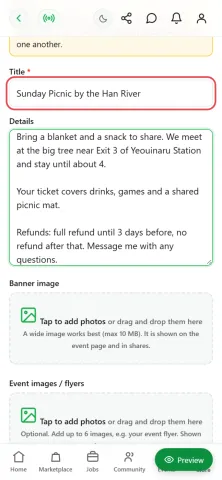
Step 2Give your event a clear title. In the details, say what happens, what the ticket includes and your refund rule, for example "full refund until 3 days before". Add a banner photo if you have one.
-
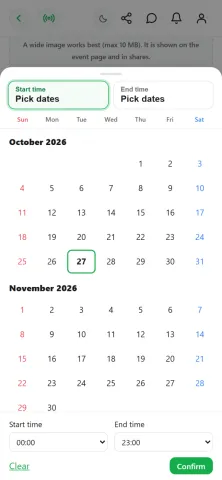
Step 3Tap "Date & time", pick the day on the calendar, choose the start and end time, then tap "Confirm".
-
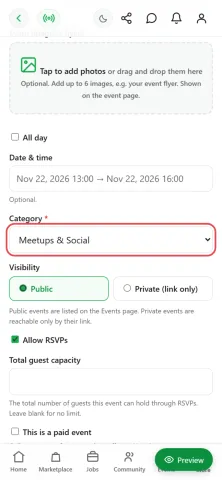
Step 4Choose a category. Keep the event Public so it shows on the Events page, or choose Private to share it only by link.
-
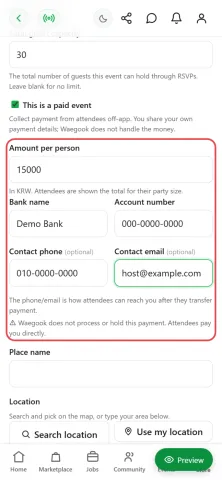
Step 5Keep "Allow RSVPs" on and enter how many guests fit. Tick "This is a paid event", type the price per person, and the bank account guests should pay into. Your phone or email is how guests reach you about payment.
-
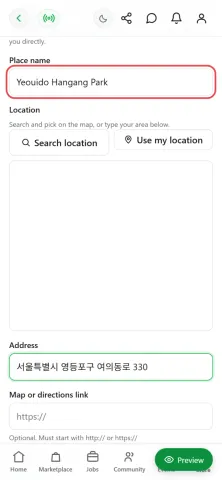
Step 6Add the place name and the address so guests can find you. You can also search the map or paste a directions link.
-
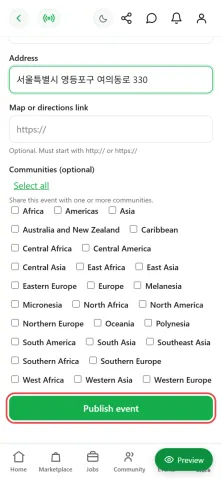
Step 7Tap "Publish event". Paid events are checked by our team before anyone else can see them, usually within a day. You get a notification when yours is approved.
-
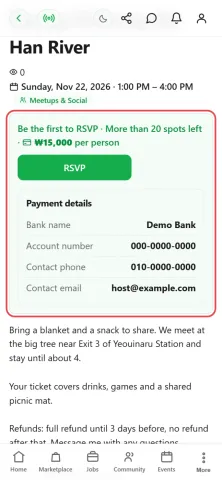
Step 8This is your event page. Until someone RSVPs, only you can see your payment details.
-
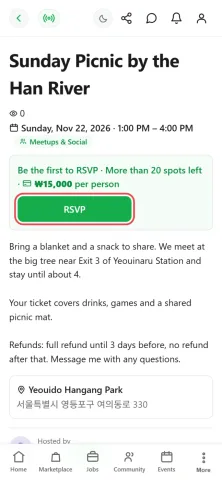
Step 9This is what guests see: the date, the price per person and the RSVP button.
-
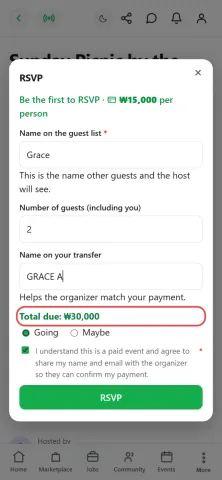
Step 10A guest chooses how many people are coming and the name they will use on the bank transfer. The total is worked out for them, and they agree to share their name and email with you so you can match the payment.
-
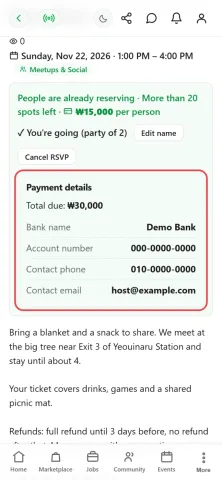
Step 11After RSVPing, the guest sees the total to send and your bank details. They pay you directly. Waegook never holds the money.
-
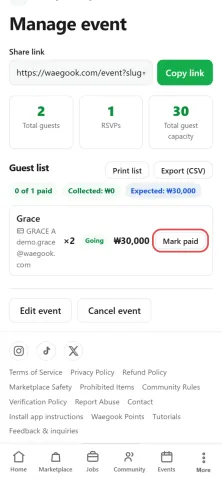
Step 12On your event page, tap "Manage event" to see the guest list. When a transfer reaches your bank, find the matching name and tap "Mark paid".
-
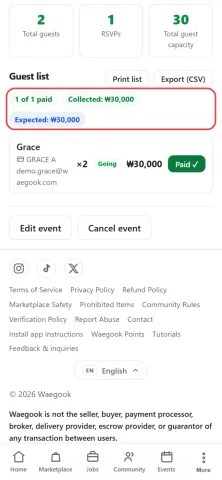
Step 13The guest now shows as paid, and the totals at the top update: how many have paid, how much you have collected and how much is still to come. Use "Print list" or "Export (CSV)" for the door.
-
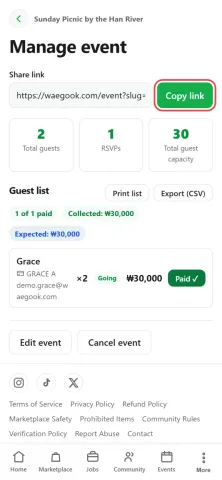
Step 14Copy the link to share your event anywhere. You can also edit the event here. If you ever cancel it, tell your guests and refund everyone who paid.